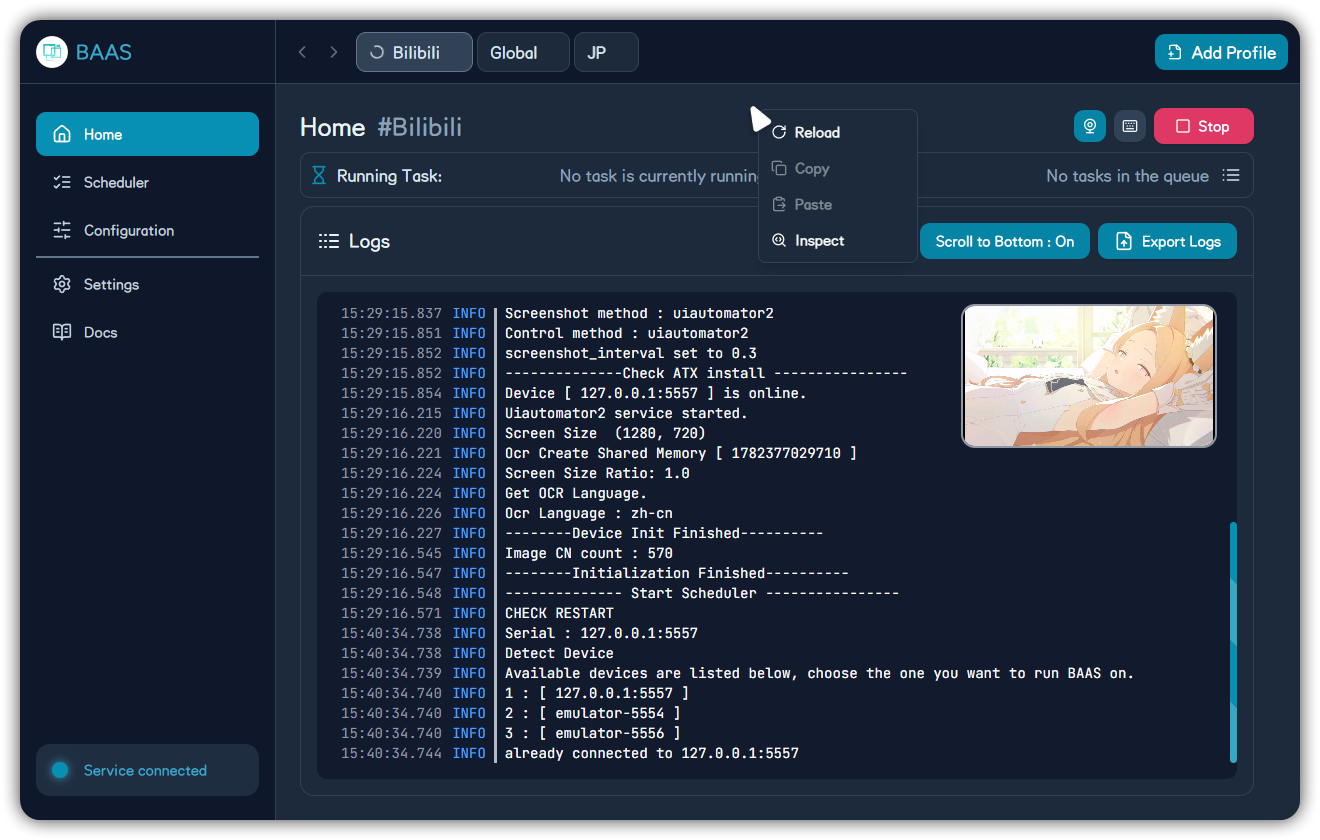
Interface Overview
Home, sidebar, profiles, profile menu, logs, remote emulator display, and settings entry points.
BAAS Tauri is organized around five pages: Home, Scheduler, Configuration, Settings, and Docs. The sidebar switches pages, the top bar switches profiles and server shortcuts, and the top-right controls create profiles or start and stop the current task flow.
Home
Home is the runtime console. It shows the current profile, running task, next task, waiting queue, logs, remote display toggle, hotkey entry, and start/stop button.
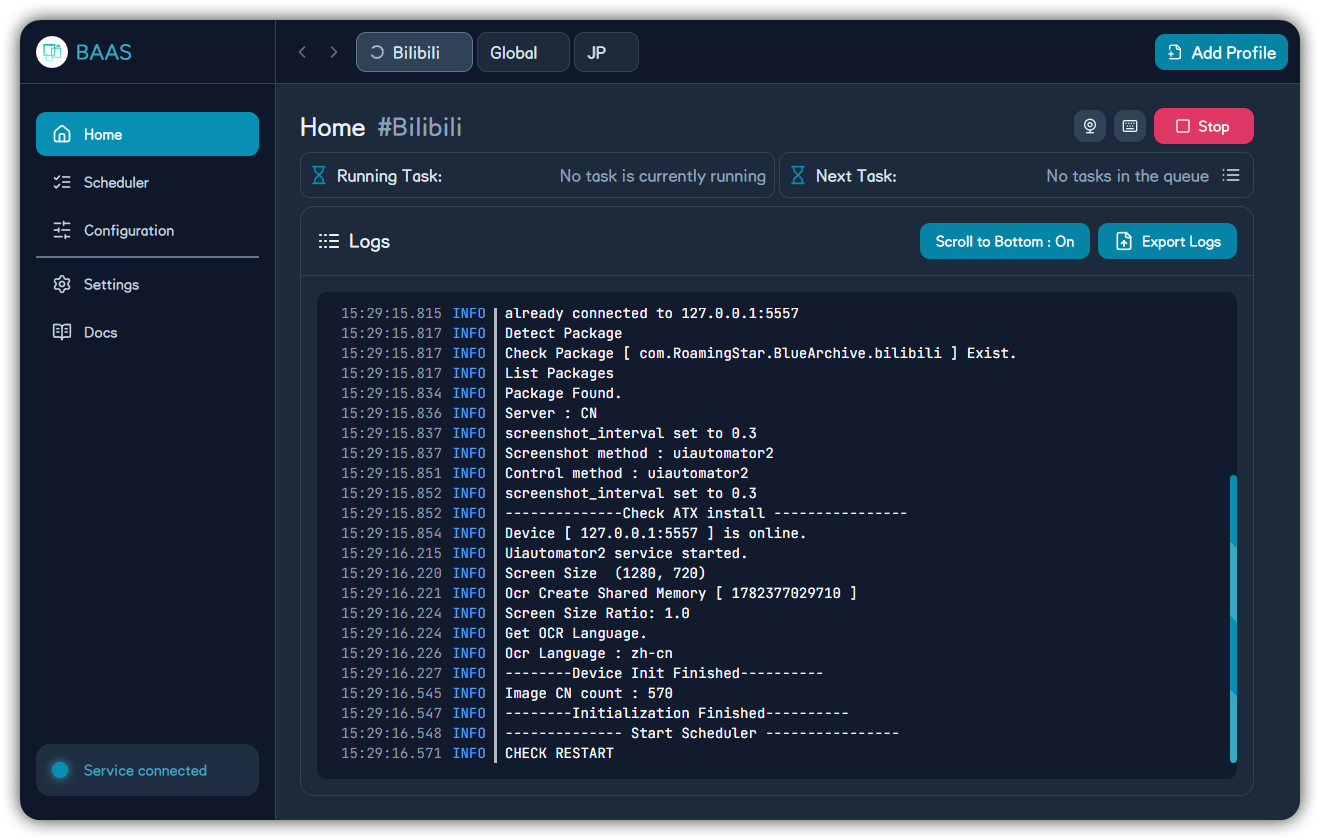
Common controls:
- Start/Stop: start or stop the scheduler for the current profile.
- Remote emulator toggle: show the emulator stream next to the logs.
- Hotkey button: configure global shortcuts.
- Scroll to end: keep the log viewer following new output.
- Export logs: save the current profile log to a text file.
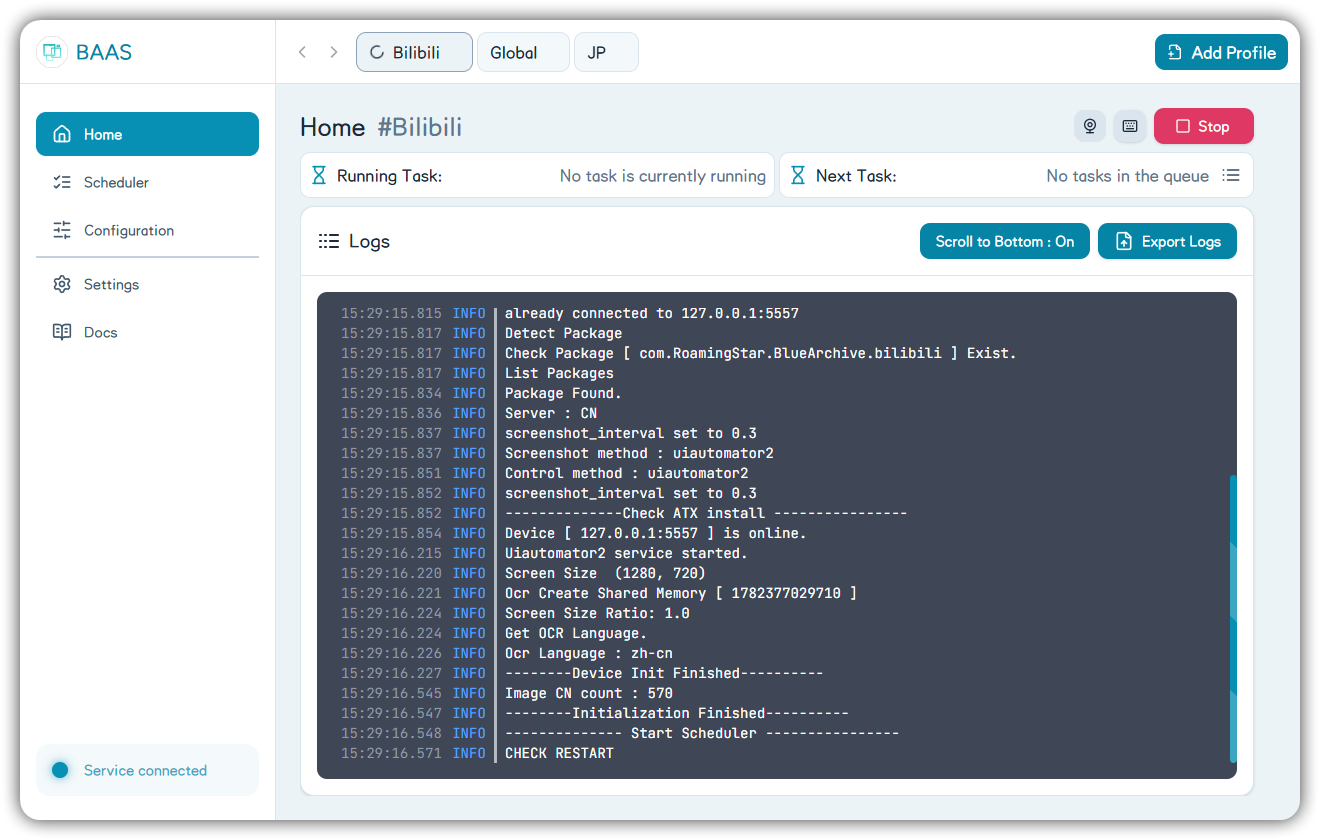
Light and Dark Themes
The client supports light, dark, and system themes. Theme choice affects only the client interface, not backend automation.
Sidebar
The sidebar contains:
- Home: runtime controls, logs, assets, remote display.
- Scheduler: task enabling, execution time, queues, and detailed scheduling.
- Configuration: all feature configuration panels.
- Settings: interface, language, updates, remote display, hotkeys, and client updates.
- Docs: load the web Wiki documentation site.
The heartbeat card at the lower-left shows backend connection state. Connected means WebSocket connection and authentication succeeded.
Profiles
The profile button opens actions for the current profile.
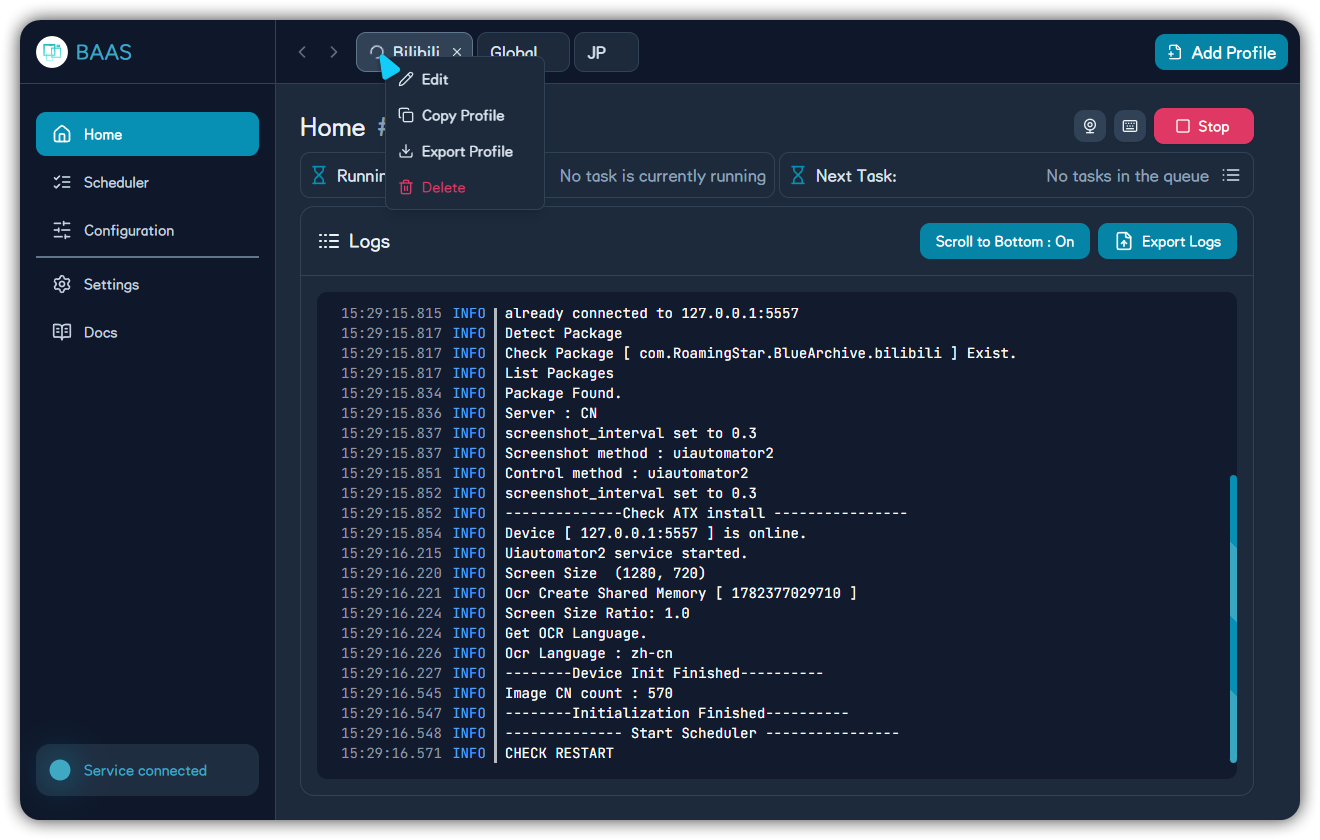
Actions:
- Edit: rename the profile.
- Copy profile: create a new profile from the current one.
- Export profile: export the current profile archive.
- Delete: remove the current profile after confirmation; the last profile cannot be deleted.
Configuration Catalog
The Configuration page is divided into feature settings and general settings.
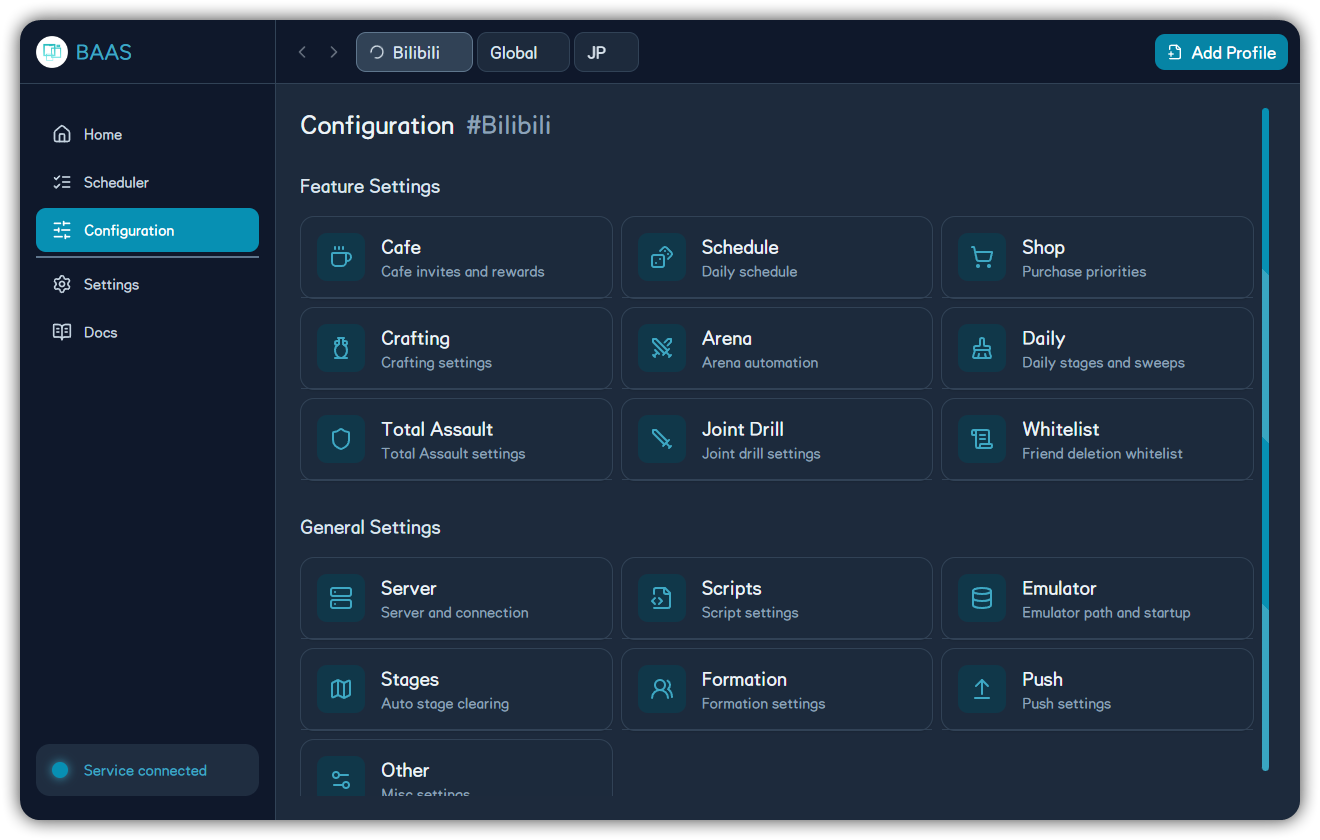
Feature settings include cafe, lessons, shop, crafting, arena, daily sweeps, Total Assault, Joint Drill, and friend whitelist. General settings include server, script, emulator, stages, team, push notifications, and other actions.
Remote Emulator
Home can embed the remote emulator stream and expose advanced display settings.
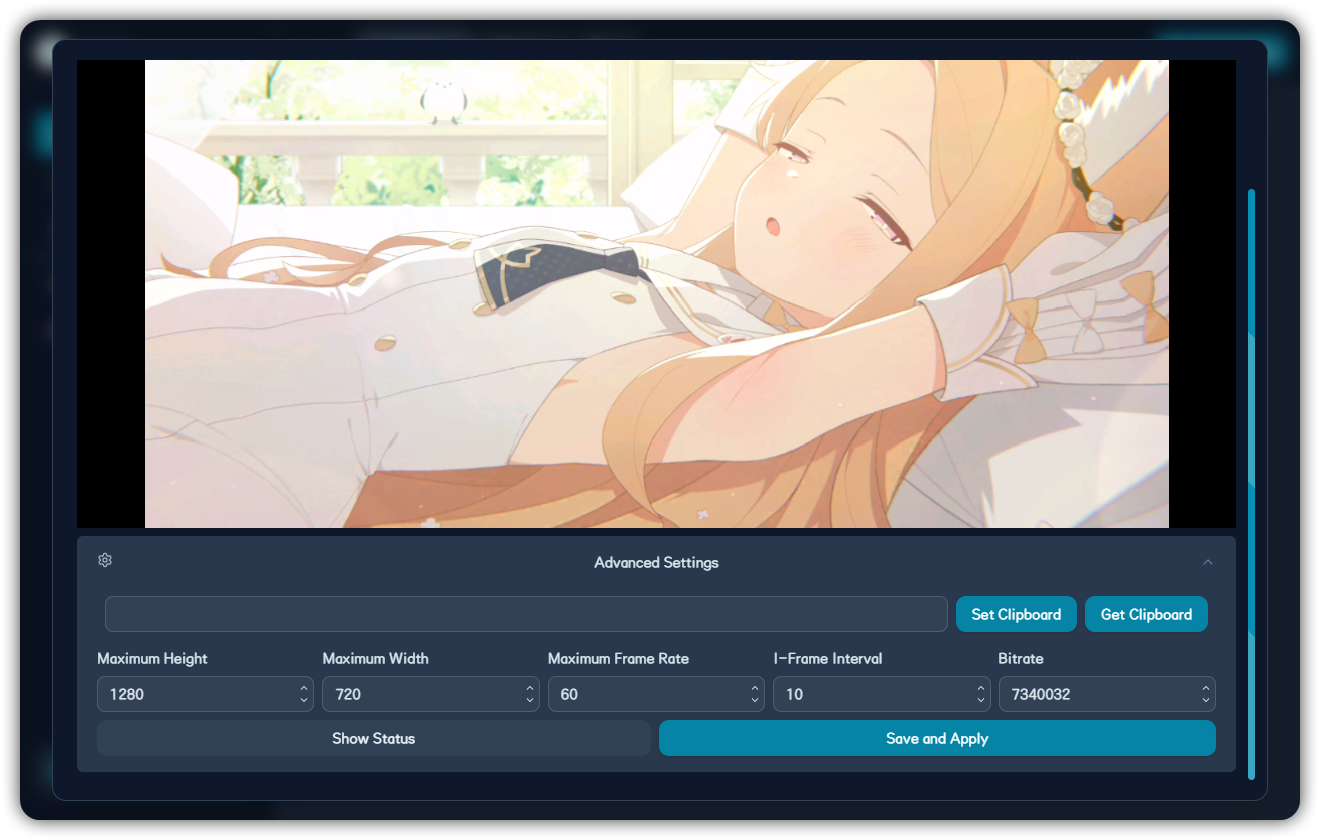
The stream is useful for observing what the backend is doing, but successful streaming does not by itself prove ADB, screenshot, and control settings are correct.
Context Menu
The app exposes context actions such as reload, copy, paste, and inspect. Regular users mainly need reload and copy; inspect is for debugging.