
Auto Fight and Recognition Development
Auto-fight workflows, state machines, screenshot data, template matching, OCR, screenshot methods, and image resources.
This page is migrated from the legacy develop_doc/script/auto_fight.md, game_feature.md, screenshot.md, and ocr.md. It explains how the backend extracts state from screenshots and executes combat workflows.
Development reference
Normal users only need to configure tasks in the Tauri client. This page is for backend auto-fight workflows, recognition assets, and source maintenance.
Auto Fight Model
BAAS auto fight is not the game's built-in Auto blindly casting skills. Instead, it:
- Captures screenshots continuously.
- Extracts cost, skills, HP, timers, positions, and other data.
- Evaluates conditions from a user-defined workflow.
- Releases skills or performs restart/end actions in the right state.
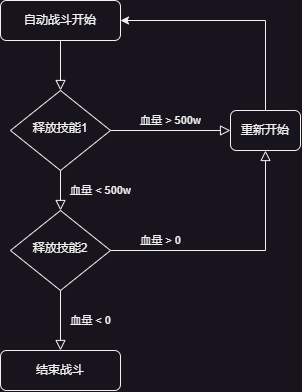
The legacy docs describe this as a finite-state machine:
Workflow files are JSON and contain three core object types:
| Object | Purpose |
|---|---|
state | Current flow node; executes an action and transitions by conditions |
action | Cast skill, restart, wait, toggle Auto, or another operation |
condition | HP, cost, skill name, timeout, and composed predicates |
Observable Combat Data
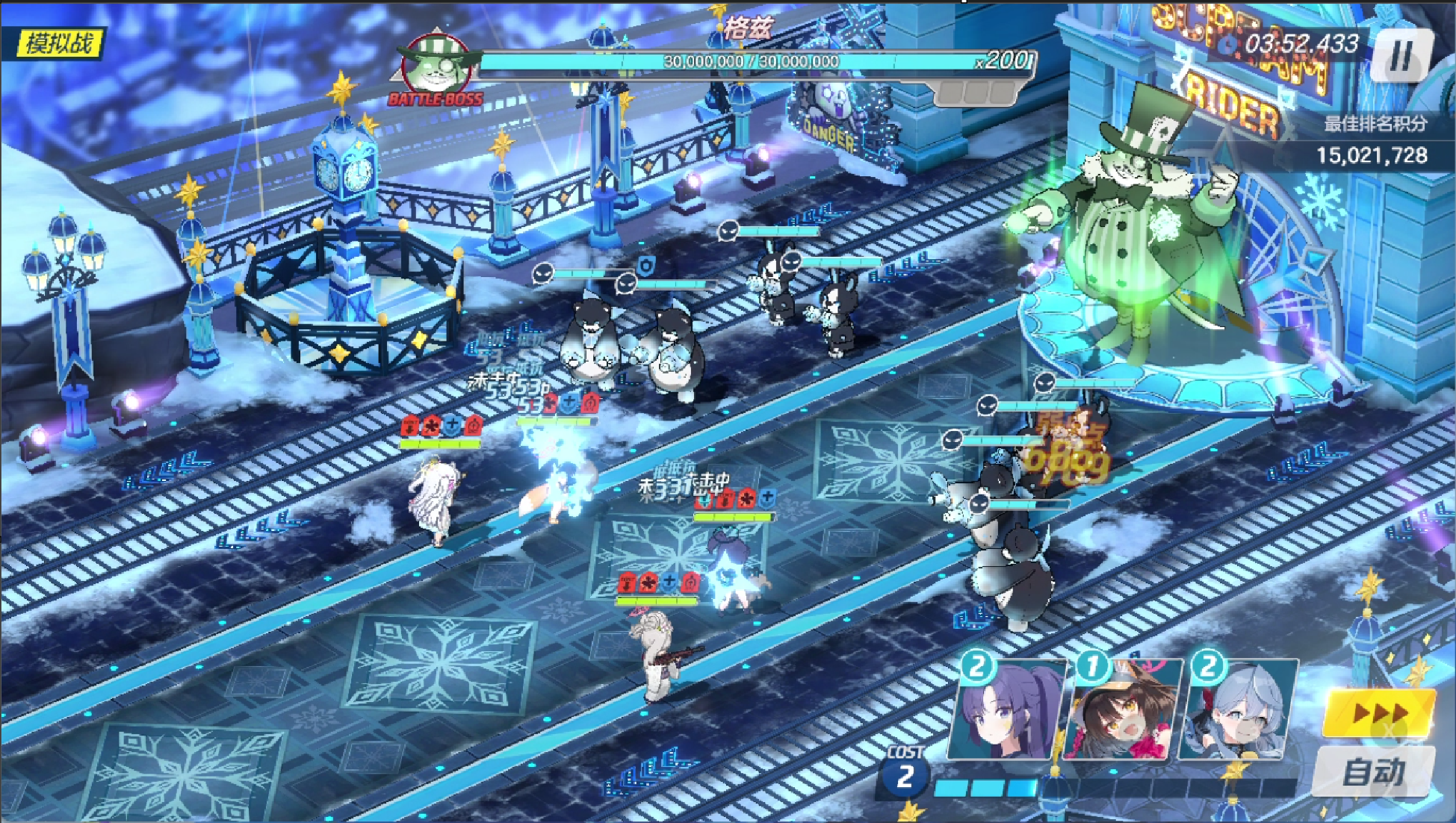
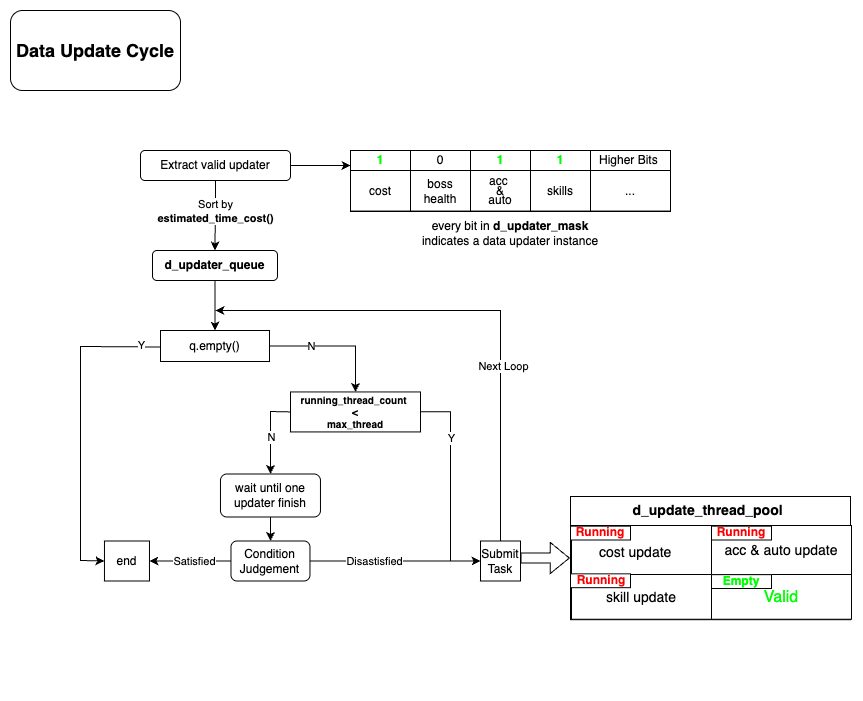
Auto fight maintains screenshot-derived data that actions and conditions can read:
| Data | Usage |
|---|---|
| Boss current/max HP | HP workflows, kill checks, restart checks |
| Skill-slot student names | Detect whether a target skill appears |
| Skill cost | Decide whether a skill can be cast |
| Current cost | Timing control |
| Speed / Auto state | Confirm combat state |
| Fight remaining time | Timeout and phase checks |
| Room remaining time | Total Assault and timed modes |
| Student/enemy positions | Targeting, area skills, YOLO detection |
Screenshot and Control Performance
Legacy screenshot-method guidance:
| Method | Notes |
|---|---|
nemu | Fast and lossless for MuMu 12; usually worth testing first |
scrcpy | Fast, but not lossless |
adb | Stable but slower |
uiautomator2 | Stable but slower |
mss / pyautogui | PC-client window capture |
Performance varies by device and emulator. Auto fight, remote display, and daily tasks have different latency needs; do not blindly reuse one task's best setting for every scenario.
Template Matching
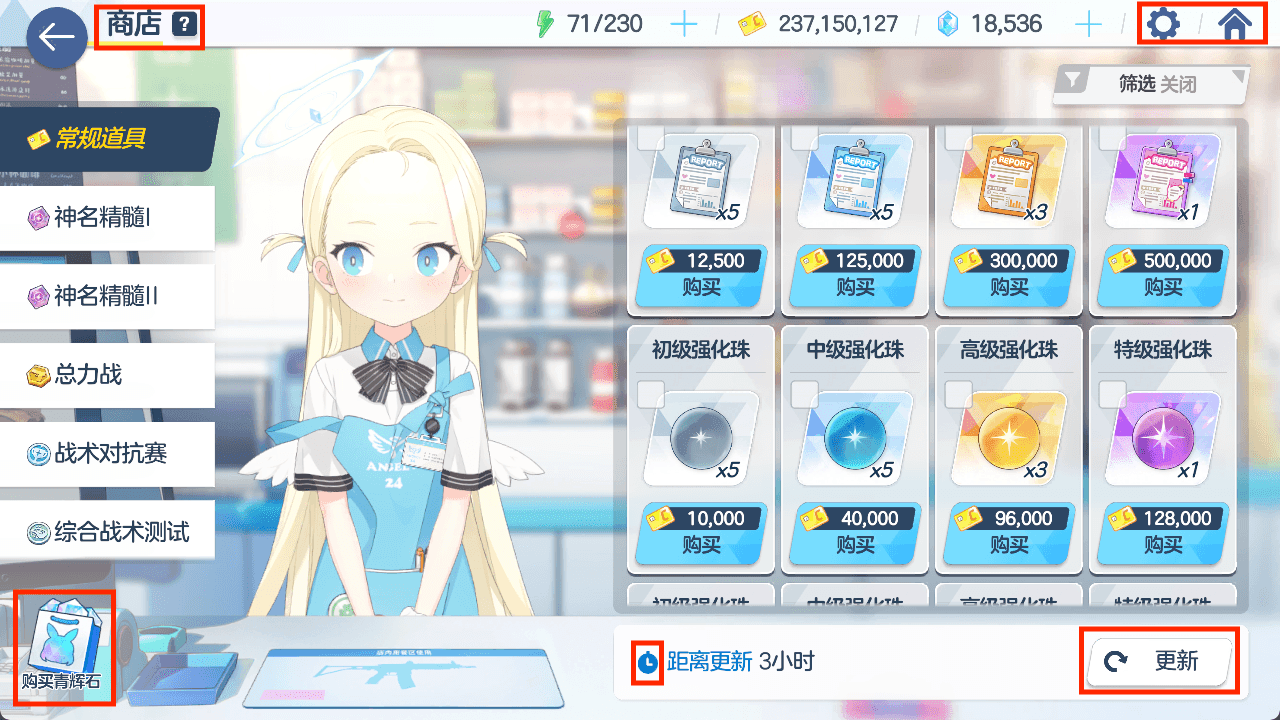
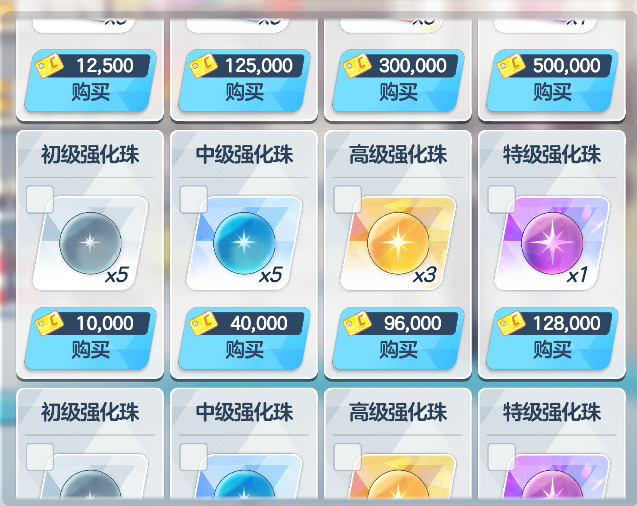
Template matching fits static images: buttons, icons, fixed UI elements, shop entries. It is CPU-friendly and can run in milliseconds. Its weakness is sensitivity to scale, rotation, color, and screenshot ratio.
Common function roles:
| Function | Purpose |
|---|---|
compare_image | Match a fixed screenshot region against a template |
search_in_area | Search a template inside a region and return best position/confidence |
search_image_in_area | Search with a runtime-provided template image |
get_image_all_appear_position | Return all positions above threshold |
swipe_search_target_str | Swipe until a target string or image appears |
OCR
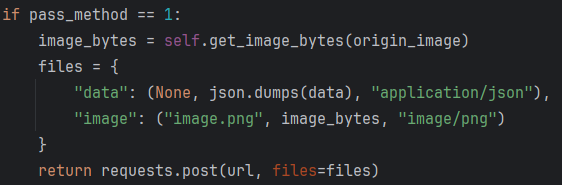
OCR recognizes text, numbers, HP, cost, event names, and other dynamic information that cannot be handled reliably by static templates. The legacy OCR service supported:
- Multiple language models.
- Single-line OCR.
- General OCR.
- Text-box detection.
- Local image, remote image, or shared-memory transfer.
OCR costs more than template matching. Prefer templates for stable static UI; use OCR for text, numbers, and dynamic content.
Recognition Asset Maintenance
When adding or updating recognition assets, confirm:
| Item | Requirement |
|---|---|
| Resolution | Prefer standard 16:9 screenshots, ideally 1280x720 |
| Format | Use lossless PNG |
| Language and server | Match the target server resource directory |
| Occlusion | Avoid cursor, popups, and notifications |
| Naming | Use semantic names, not temporary screenshot names |
| Validation | Test on the target server and a clean profile |
If recognition fails only on the PC client, check HDR, window ratio, screenshot method, and control method before recapturing templates.