Script
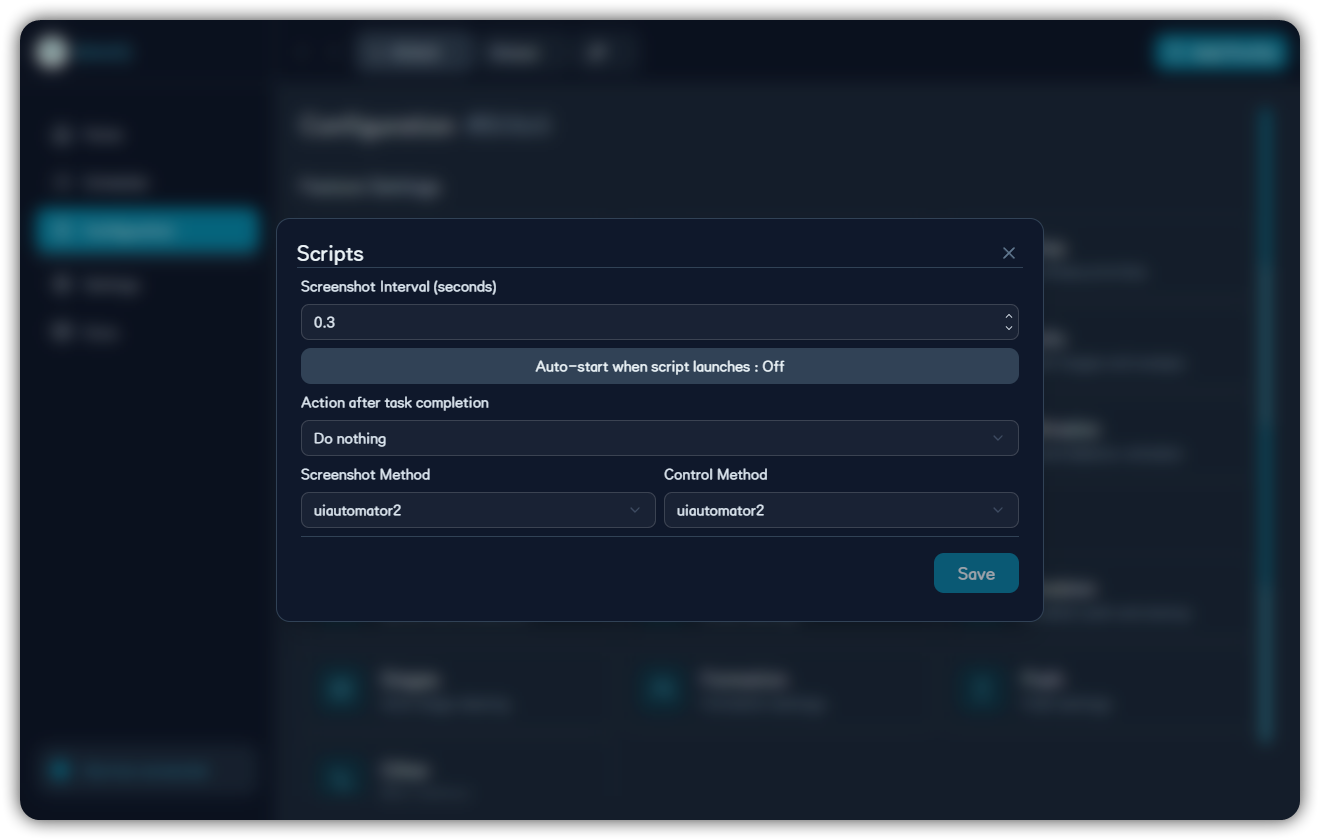
Screenshot interval, autostart, completion action, screenshot method, and control method.
Script settings decide how the backend screenshots, clicks, and handles the environment after tasks finish.
| Option | Description |
|---|---|
| Screenshot interval | Shorter reacts faster but costs more resources |
| Autostart on script launch | Start scheduling when the script launches |
| Completion action | Do nothing, exit BAAS, exit emulator, exit both, or shut down |
| Screenshot method | Affects capture stability |
| Control method | Affects click, drag, and input behavior |
If recognition fails or clicks do not work, check 16:9 aspect ratio, HDR, screenshot method, control method, and emulator foreground state.
Recommended Baseline
Legacy BAAS docs repeatedly emphasize that recognition depends on stable images. Start from conservative game/emulator settings before optimizing for speed.
| Item | Recommended Value | Reason |
|---|---|---|
| Emulator resolution | 1280x720 or equivalent 16:9 | More stable templates and coordinates |
| FPS | 60 | Avoid delayed page-transition checks |
| Accelerated rendering mode | Compatible | Reduces screenshot anomalies |
| Post-processing / Anti-aliasing | ON | Keeps images close to template assets |
| Combat letterboxing | OFF | Avoids combat screenshot ratio and coordinate shifts |
| Memorial lobby | Prefer disabled | Some dynamic lobbies interfere with home recognition |
Do not use translation patches that modify game images. Template matching depends on original UI images, and patched buttons, text, or icons may no longer match.
Screenshot and Control Methods
Legacy backend guidance remains useful for troubleshooting:
| Item | Option | Notes |
|---|---|---|
| Screenshot | nemu | Fast and lossless for MuMu 12 when the environment matches |
| Screenshot | scrcpy | Fast, but not lossless |
| Screenshot | adb / uiautomator2 | Conservative and stable, but slower |
| Screenshot | mss / pyautogui | PC-client window capture |
| Control | adb / uiautomator2 / scrcpy | ADB emulator control |
| Control | nemu | Low-latency MuMu 12 control |
| Control | pyautogui | Desktop mouse control for PC client |
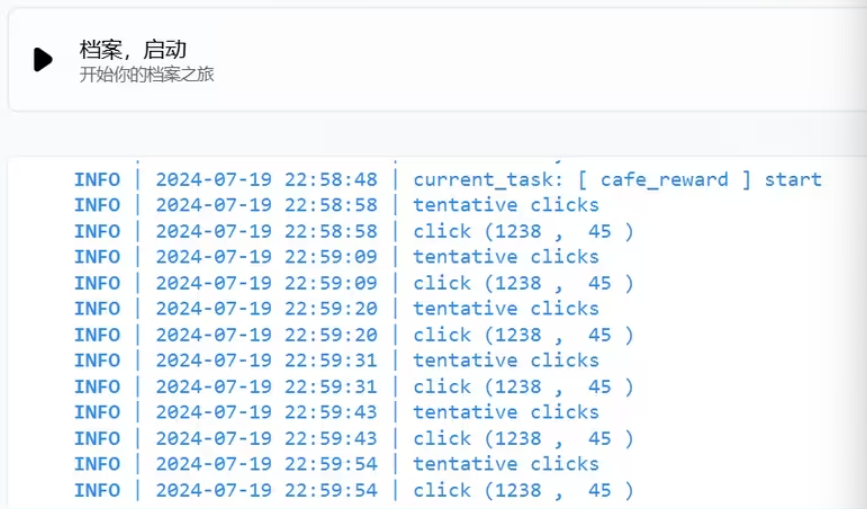
If logs repeatedly show tentative click but the page does not change, check MuMu background keep-alive, game settings, control method, and window focus.