
Troubleshooting
Common issues for installation, connection, ADB, emulator, screenshot recognition, scheduler, updates, remote display, and docs.
When troubleshooting BAAS, first identify the failing layer: installer, Tauri client, backend service, ADB/emulator, game recognition, scheduler configuration, or update source. Logs usually point to the actual failing step.
Installer Stuck or Failed
The installer shows setup steps and Installation Logs.
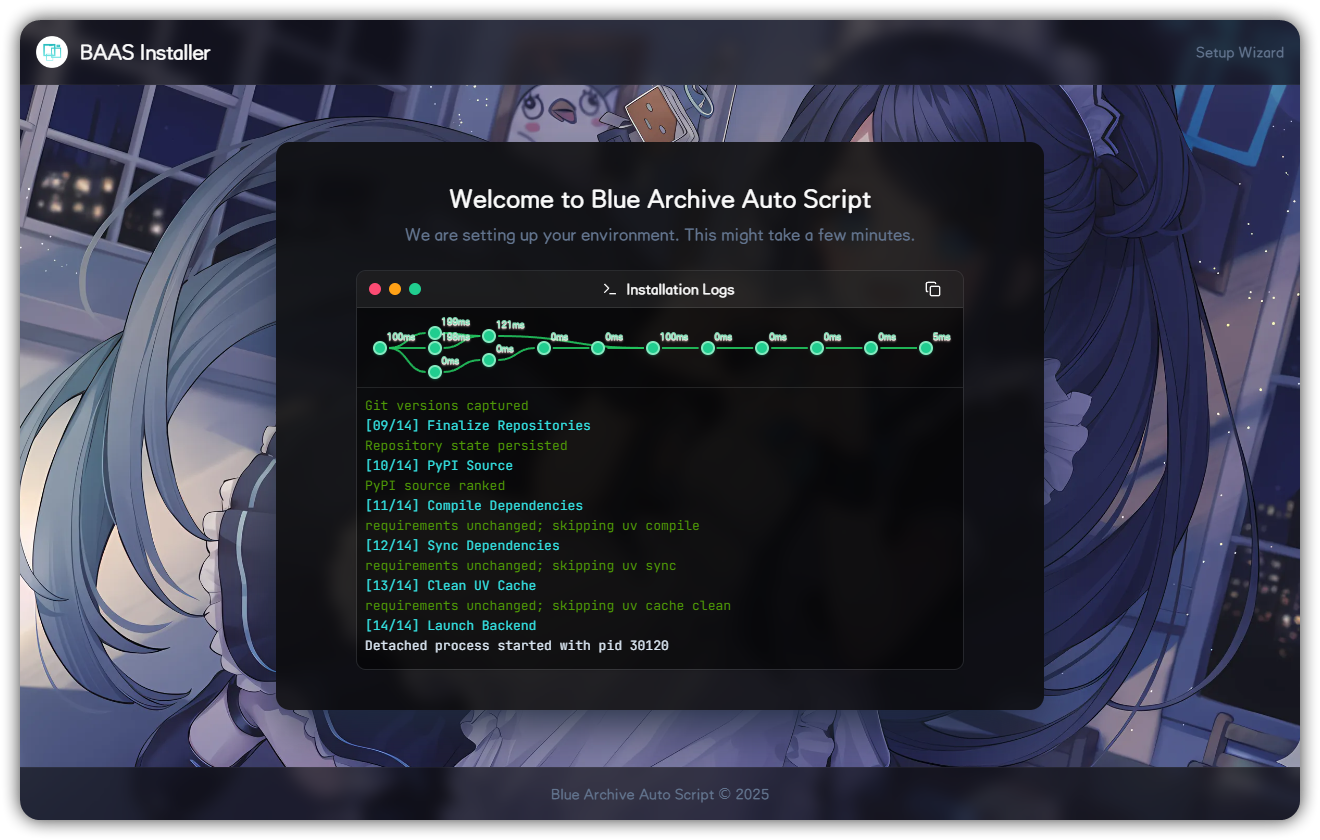
Check:
- Whether the install directory is writable.
- Whether the path contains unusual characters or permission restrictions.
- Whether the current update source and PyPI source are reachable.
- Whether MirrorC CDK is valid.
- Which step the logs stopped at.
Install Path Contains Non-ASCII Characters
Older backend docs recorded Qt plugin startup failures when the BAAS install path contains Chinese or unusual characters. Symptoms include Qt platform plugin errors, a missing window, or the UI failing immediately.
Try:
- Prefer installing BAAS into a simple path such as
D:\BAAS. - If you must keep the current path, check whether
QT_QPA_PLATFORM_PLUGIN_PATHpoints to a valid Qt plugins directory. - Avoid setting a custom global Qt directory permanently; it can conflict with emulator-bundled Qt, especially MuMu.
Installer Opens a Blank Console
If the installer or launcher only shows a black console window:
- Wait a few minutes first; dependency extraction or downloads may be slow.
- Check whether Windows Security or another security tool blocked the installer, Python runtime, or backend files.
- Add the BAAS directory to the allowlist and retry.
- Preserve installer logs before reinstalling, otherwise the useful failure evidence may be lost.
Network or Repository Errors During Install
If installer logs show repository download failures, HTTP 400, timeouts, or denied service:
- Switch update source in advanced installer settings or
setup.toml. - If GitHub is unstable, test GitCode, Gitee, BAAS CDN, or MirrorC.
- If using MirrorC, verify the CDK and remove accidental whitespace.
- Proxy settings can affect Git, PyPI, and update sources; keep terminal, system, and installer proxy behavior consistent.
Service Keeps Connecting
If the lower-left heartbeat stays connecting, the client has not completed backend connection or authentication.
Check:
- Backend process is running.
- Local port is not occupied or blocked by firewall.
- BAAS key matches the backend.
- Installer or backend logs do not show a crash.
- Backend is not still preparing after an update.
ADB Cannot Connect
Use ADB detection from Server settings.
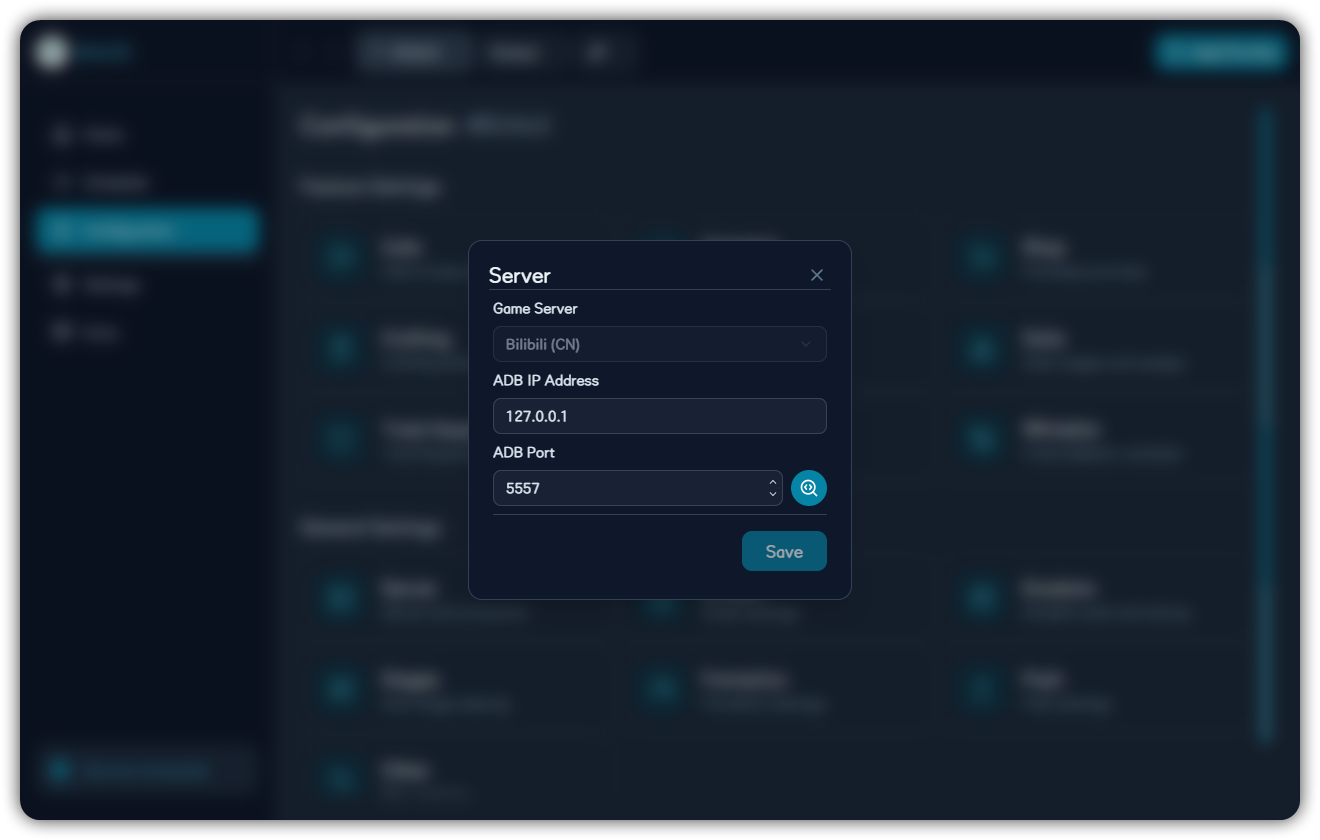
Common causes:
- ADB or developer debugging is disabled.
- Multi-instance port is wrong.
- Target emulator is not fully started.
- Another ADB service occupies the connection.
- WSA network or developer mode is disabled.
- Backend lacks permission to access ADB.
Test with one emulator instance first, then configure multi-instance.
Common Emulator ADB Ports
When auto detection fails, fill ADB IP and port manually. Common single-instance ports:
| Emulator | Common Port |
|---|---|
| MuMu 12 5.0+ | 5555 |
| MuMu 12 | 16384 |
| Older MuMu | 7555 |
| LDPlayer | 5555 |
| BlueStacks | 5555 |
| MEmu | 21503 |
| NoxPlayer | 62001 or 59865 |
For multi-instance setups:
| Emulator | Rule |
|---|---|
| MuMu 12 5.0+ | 5555 + instance number * 2 |
| MuMu 12 | 16384 + instance number * 32, or inspect the ADB panel in MuMu multi-instance manager |
| BlueStacks / LDPlayer / Nox / MEmu | Use the emulator manager or BAAS ADB detection result |
BlueStacks and LDPlayer usually require ADB debugging to be enabled in emulator settings. If the port looks correct but connection still fails, restart the emulator and backend, then test with only one instance.
Screenshot or Recognition Errors
If logs show recognition failure or wrong click coordinates:
- Keep game aspect ratio close to 16:9.
- Disable HDR on PC clients.
- Avoid scaling that changes screenshot proportions.
- Try another screenshot method.
- Try another control method.
- Keep the emulator visible and not minimized.
Remote display issues and script screenshot issues are related but separate; troubleshoot them separately.
Choosing Screenshot Method
Typical tradeoffs:
| Method | Best For | Notes |
|---|---|---|
nemu | MuMu 12 with speed priority | Only for compatible MuMu environments; emulator version and path must match |
scrcpy | Faster screenshots when scrcpy channel works | If unstable, switch back to a conservative method |
uiautomator2 | Conservative compatibility checks | Slower but stable |
adb | Most conservative common baseline | Slow, but useful for validating basic connectivity |
When troubleshooting recognition, change one setting at a time. First confirm stable screenshots with adb or uiautomator2, then switch to faster methods.
Choosing Control Method
Available methods include adb, uiautomator2, scrcpy, and nemu. If clicks do nothing or coordinates are visibly wrong:
- Confirm the screenshot aspect ratio first.
- Use
uiautomator2oradbfor a conservative test. - Use
nemucontrol only with MuMu 12 and correct path/version settings. - PC client automation uses desktop screenshot and mouse control settings; do not apply ADB emulator assumptions there.
Logs Repeatedly Print tentative click
The old FAQ points to MuMu background keep-alive or game settings as common causes. Try:
- If using MuMu, disable background keep-alive in emulator settings.
- Confirm game aspect ratio, language, server, and graphics settings match recommended configuration.
- Check whether the task expects you to manually enter a specific page first.
- Export logs and capture the current game screen to identify the exact recognition step.
Task Does Not Run
Check:
- Task is in the Active Tasks column.
- Next run time has arrived.
- Disabled range does not block it.
- Pre-task is not blocking it.
- Interval is not too long.
- You are viewing the correct profile.
- Scheduler is started.
Task Runs but Result Is Wrong
If a task buys, sweeps, or enters the wrong target:
- Stop the scheduler to avoid further spending.
- Export logs.
- Capture the current game page and configuration dialog.
- Check stage format, counts, purchase priority, and team number.
- For event tasks, confirm current event name and stage number.
Remote Display Problems
For stutter or blank stream, reduce parameters in advanced settings.
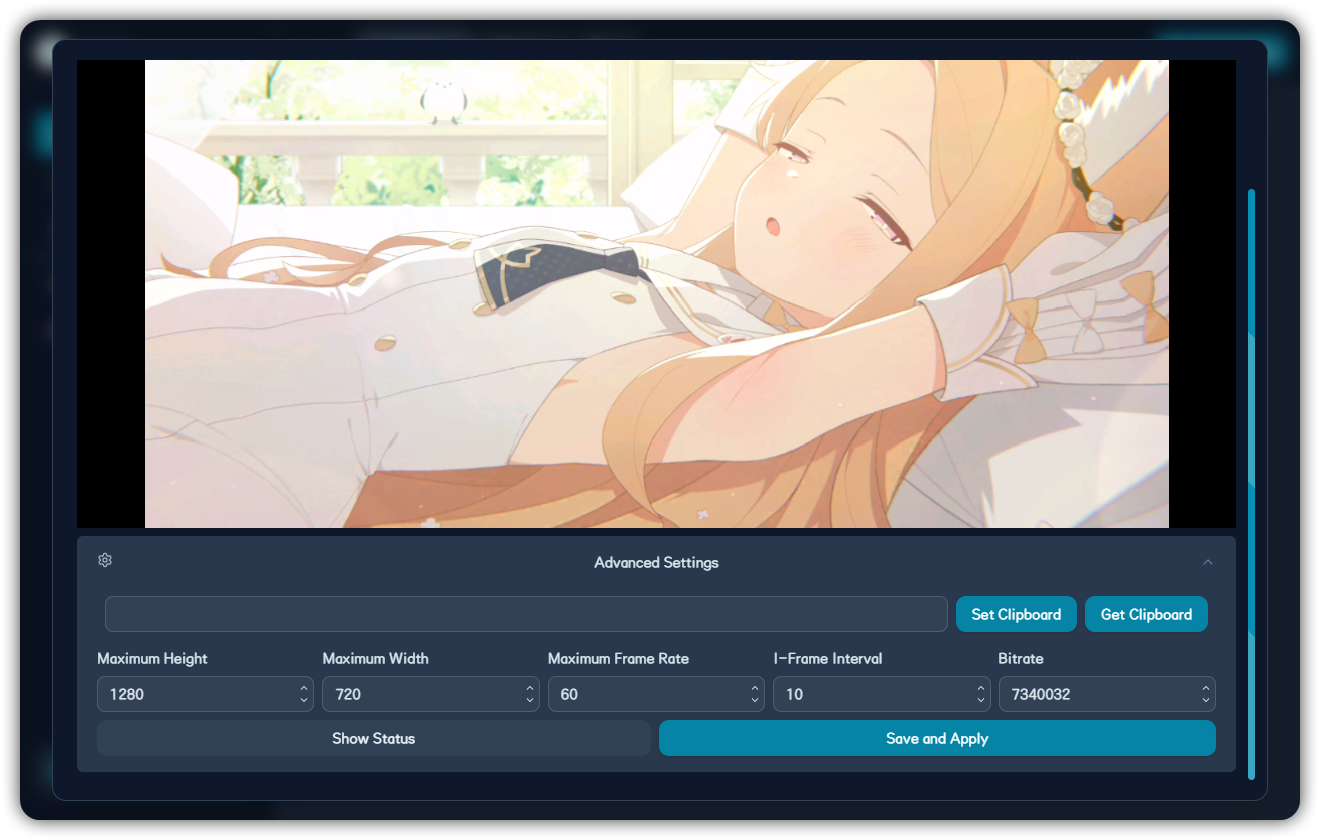
Try:
- Lower width and height.
- Lower FPS.
- Lower bitrate.
- Switch decoder.
- Disable safe stream temporarily for testing.
- Check backend stream logs.
Update Failures
Use Settings to inspect update source and SHA test results.
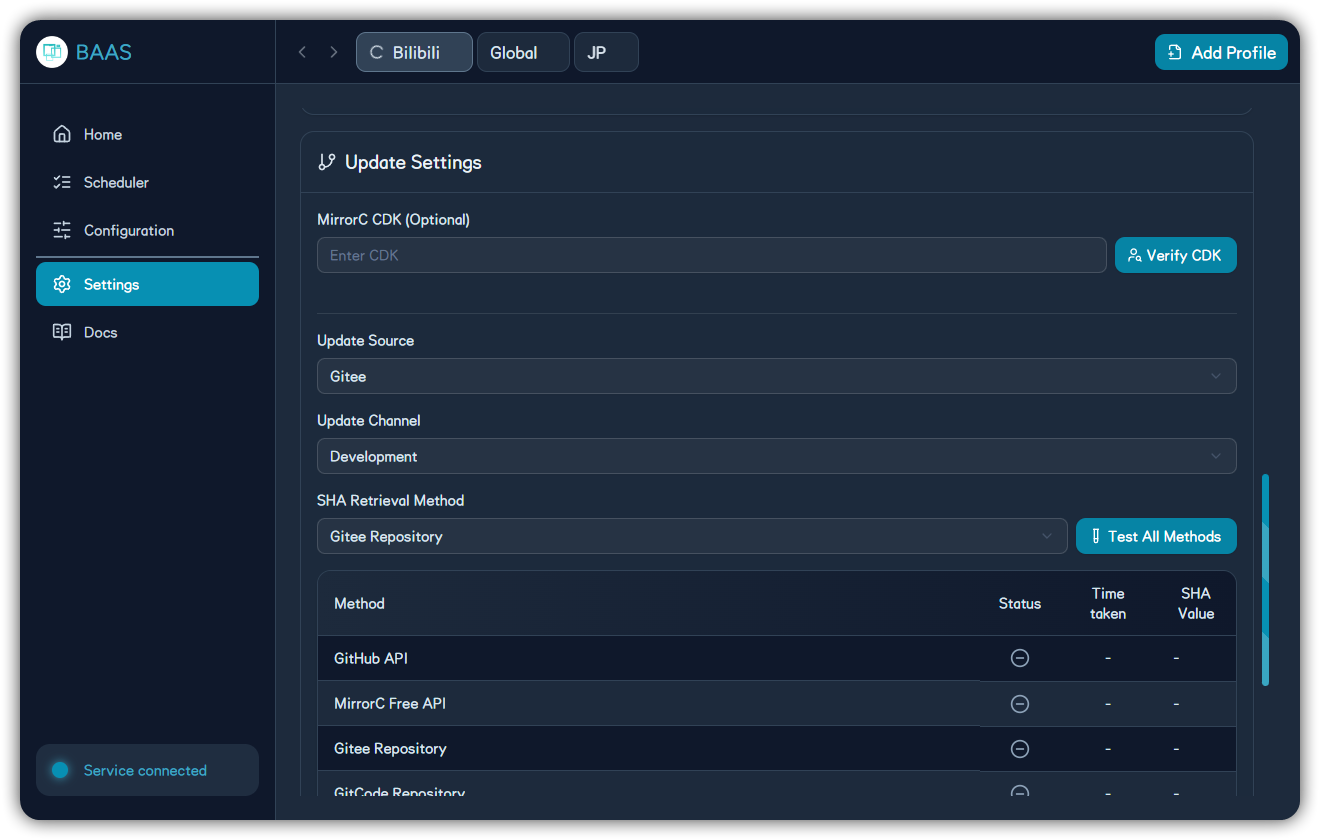
Recommendations:
- If GitHub is unavailable, test Gitee, GitCode, BAAS CDN, or MirrorC.
- Verify MirrorC CDK before using MirrorC.
- Switch SHA method when tests time out.
- Restart the Tauri client before retrying failed client updates.
- Preserve installer and backend logs for backend update failures.
Android Client Problems
v0.0.7 added the Android client. If Android cannot start, script toggles fail, or the backend keeps restarting:
- Confirm the APK is current and Android allows the app to be installed and run.
- Enable the accessibility service; some automation controls depend on it.
- Keep the foreground service notification alive; if the system kills the app, backend and scripts stop.
- If the notification script toggle does not work, open the app, confirm the backend has started, then retry from the notification.
- If the UI does not recover after an Android backend update, close and reopen the app.
Transport and System Log Problems
v0.0.7 prefers named pipe transport on desktop while WebSocket remains available for compatibility. If connection repeatedly recovers or logs look interrupted:
- Check system log settings and confirm frontend system logs are enabled.
- Restart the backend after switching transport mode to avoid stale connections.
- If named pipe transport fails, temporarily switch back to WebSocket and preserve logs.
- Include backend logs, system logs, and transport mode when reporting.
Docs 404 or Missing Images
Local development URLs should be:
http://localhost:3000/docs/zh/
http://localhost:3000/docs/en/
If sidebar links go to /zh/docs/..., Fumadocs i18n URL generation is wrong. This project should generate /docs/zh/... and /docs/en/....
If images do not render:
- Confirm images are under
docs/public/cnordocs/public/en. - Use MDX paths starting with
/cn/...or/en/.... - For GitHub Pages, confirm
NEXT_PUBLIC_BASE_PATHis passed during build.
Support Report Checklist
Provide:
- BAAS Tauri and backend versions.
- OS and emulator type.
- Game server.
- Task name.
- Exported logs.
- Relevant configuration dialog screenshot.
- Game or remote display screenshot at failure.
- Whether the client or backend was just updated.